Safe Sender Optimization
Written By hillcollege
Last updated 8 months ago
If you are receiving Hill College emails and they either go straight to junk mail, don't appear at all or images cannot be show, we ask that you follow this article as Outlook may believe Hill College is trying to phish/scam you - we can ensure you we're not.
Outlook has a safe sender setting where you can allow certain emails and domains to ensure that Outlook doesn't block them and that you receive them in your Inbox when you get a new message from that email or domain.
Step Guide
Open Outlook in your web browser
Click on the settings icon in the top right

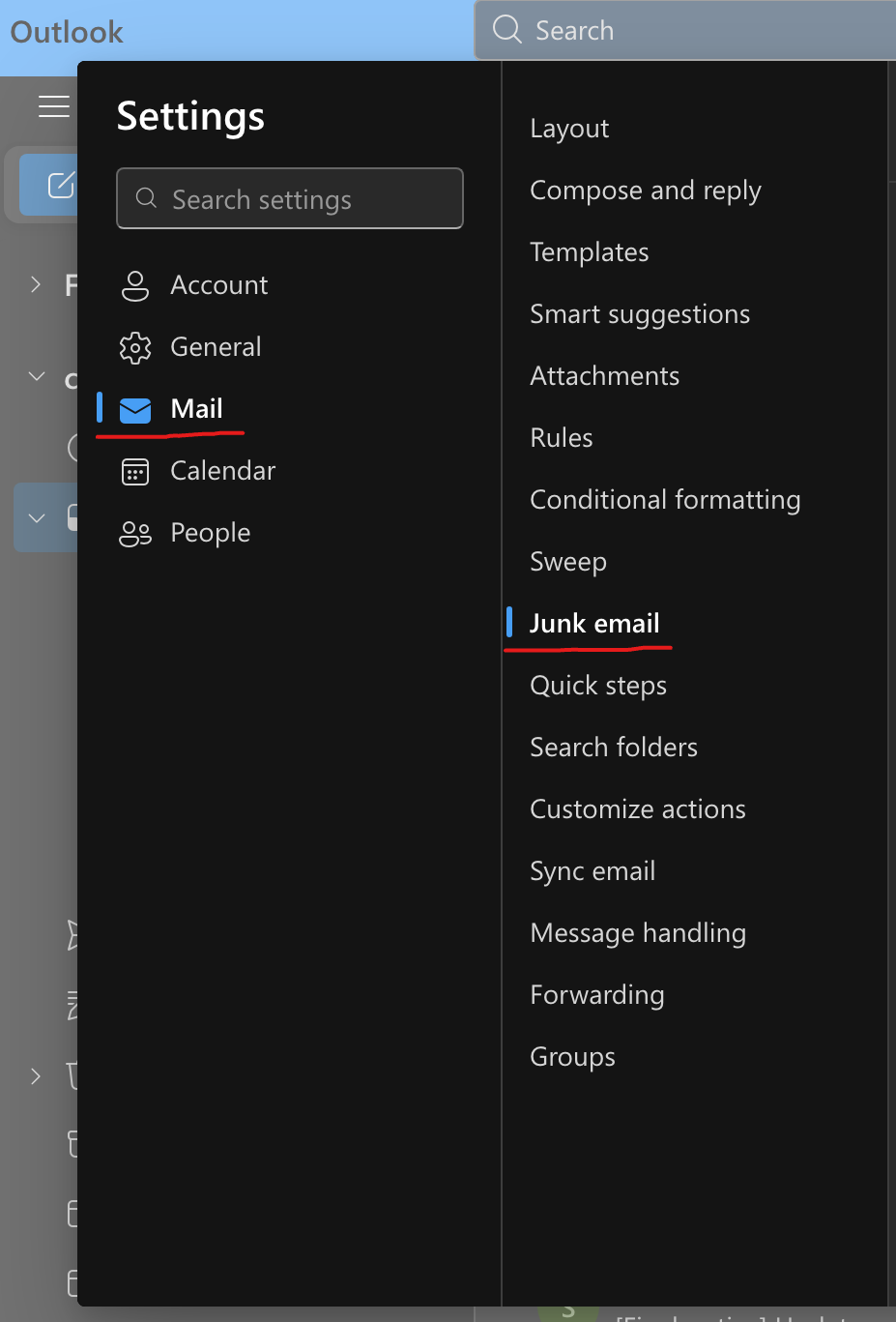
Under "Mail" click on "Junk Mail"
Scroll down to "Senders"
Under "Safe senders and domains" click the "Add safe sender" button
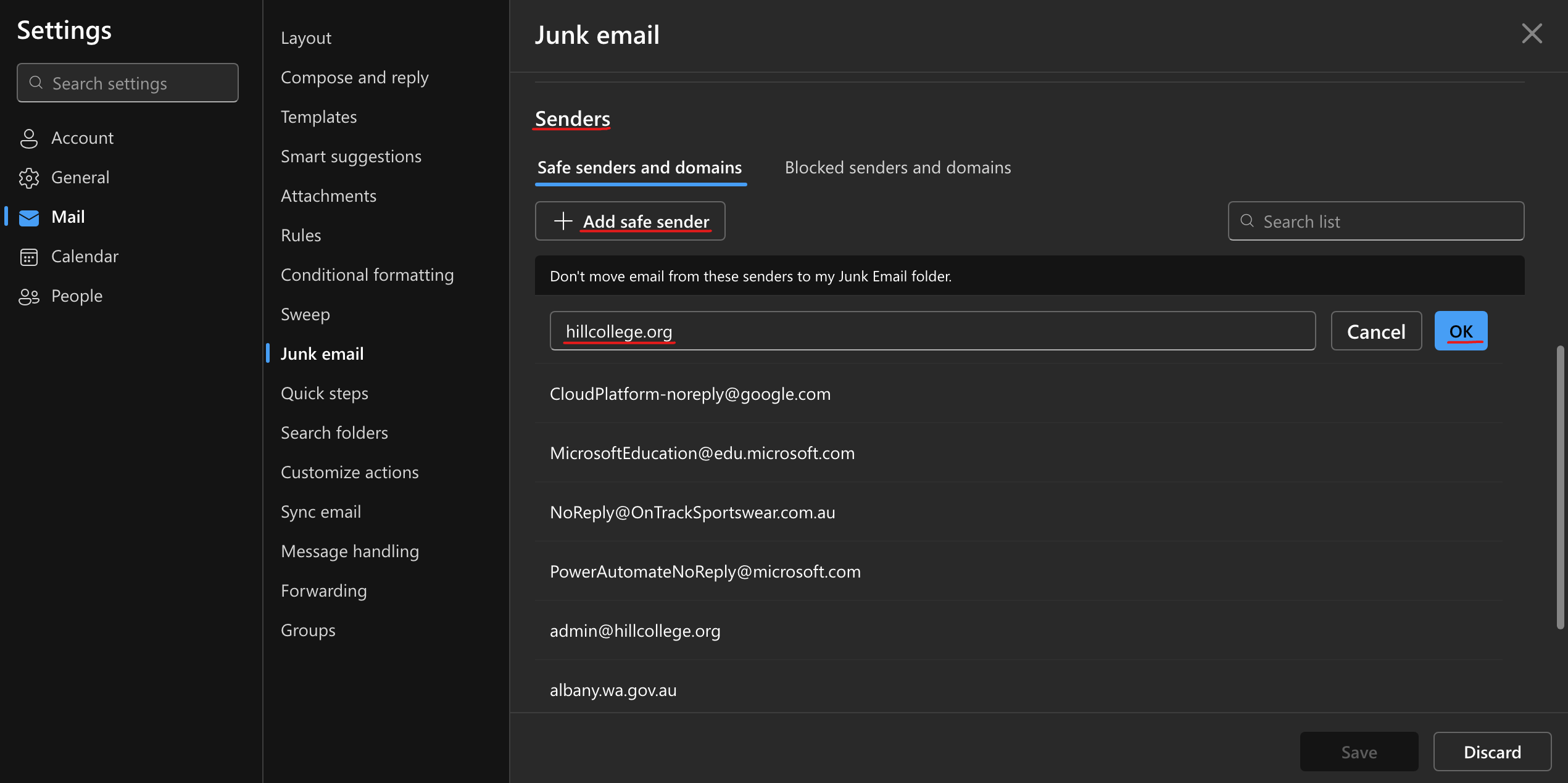
Enter these three separately:
Ensure you click "Save" are entering the email and domain
Now you can close the settings popup
Note: You may not see the Hill College emails be at the top of the list, but they will be somewhere in the list if you clicked "OK" after entering each individual email/domain. If you are unsure you can go through and find them or just search each one to double-check.
IT Support
If you still are receiving emails to your junk mail or not receiving any when you know you should be, please contact IT support and we will work with you and Microsoft to resolve this issue.